
Paying For Work
BitWrk is a crytpo-first platform, where you pay for work in crypto. This is a comprehensive guide on how payments work on the BitWrk platform.

Author
Anthony BuddOn BitWrk all payments for work done are held in escrow. Before you can assign tasks to a developer, you need to have funds in your account. This guide will walk you through the step-by-step process of depositing funds into your Bitwrk account.
Step 1: Log In and Navigate to the Finances Page
The first step in making a deposit is logging into your account and opening the Finances page.
-
Login to your Bitwrk account by going to app.BitWrk.io
-
Enter your username and password, then complete any additional security checks, such as two-factor authentication (2FA).
-
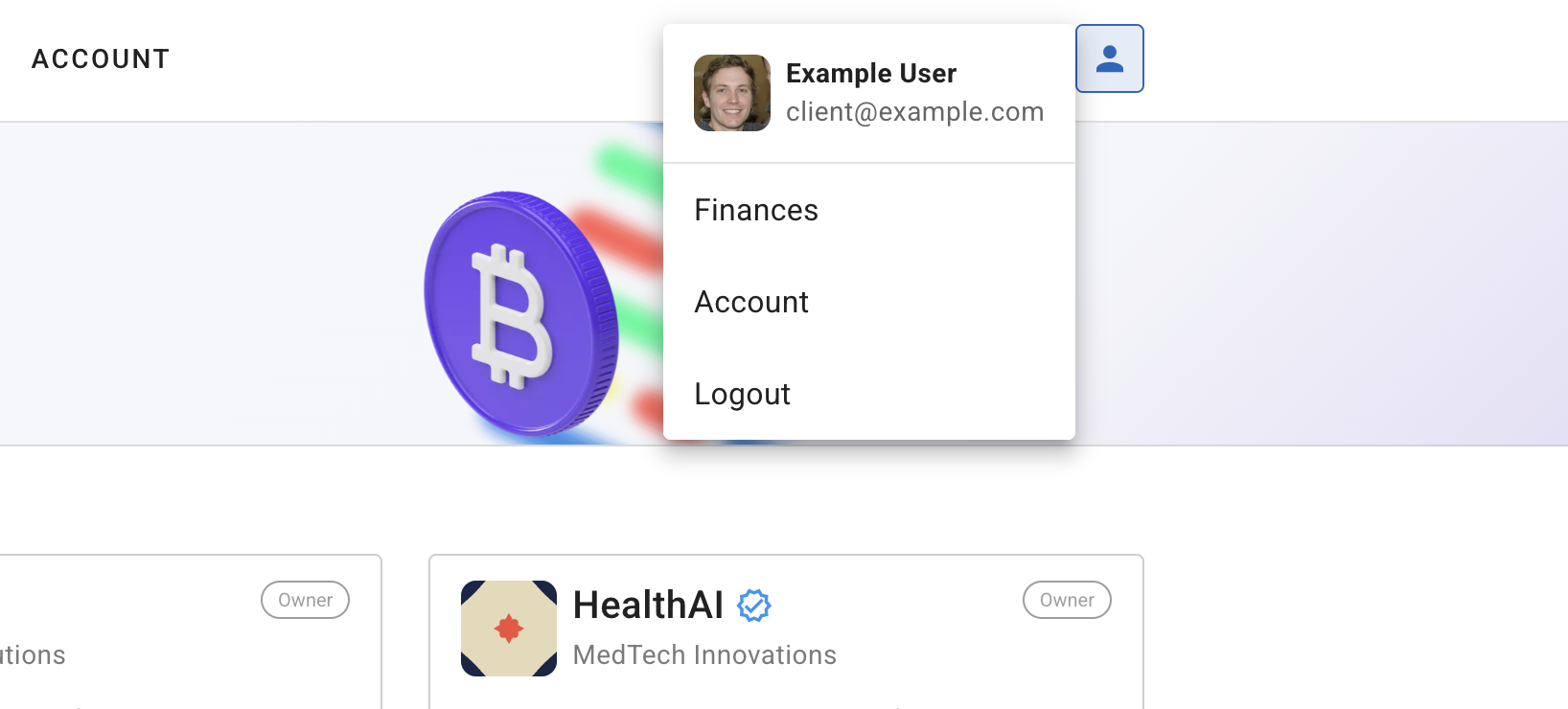
Once logged in, open on the “Finances” page. This can be found under on the main user menu, as shown in the screenshot below.
Step 2: Start a New Deposit
On the Finances page, you will be able to see all of the transactions that have been made with your account. To start a new deposit, click the “Deposit” button.
-
Click the “Deposit” button to start a new deposit.
-
Select the currency you would like to deposit funds with.
-
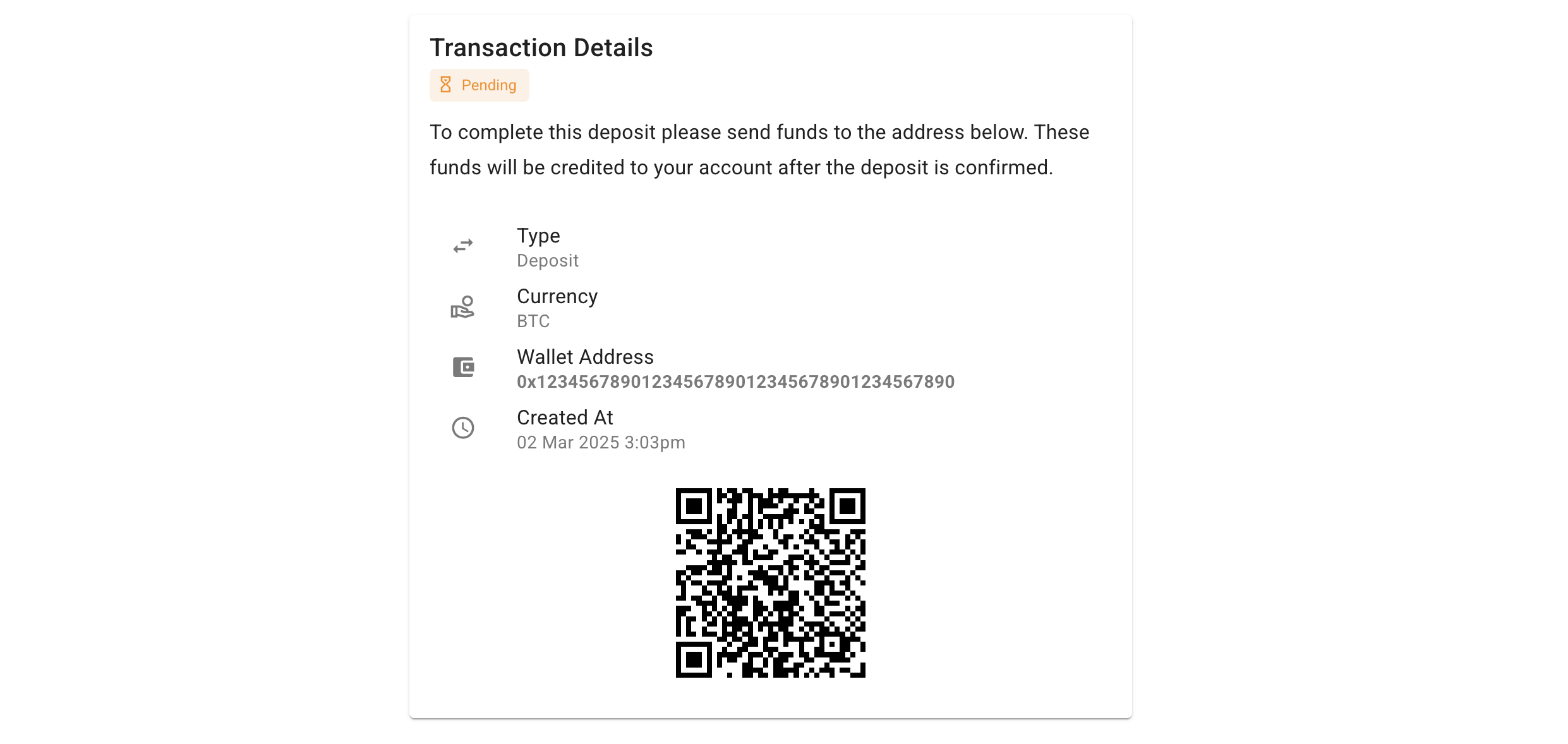
Next you will be taken to the transaction details page. Here you will be able to see the status of the transaction, the currency you are depositing in and the address you will be depositing to.
-
Use the QR code or copy the address to your clipboard and send the funds to the address provided. Only send one transaction to this address, subsequent transactions may not be credited to your account.
Hint
All balances in your BitWrk account are held in USDT. If you deposit funds with a different currency, they will be converted to USDT and credited to your account.
Step 3: Wait for the Deposit to Be Credited
Your deposit will be credited to your account after the transaction is confirmed. This can take up to 6 hours.
You will receive an email or notification once your funds are credited.
If your deposit does not appear within the expected time frame, check your transaction history to ensure it was successfully sent. Failed transactions will be displayed in your transaction history.
If you encounter any delays beyond the six-hour period, contact customer support with your transaction reference number for assistance.